Tasks and Search in the resource center, step by step
This page walks through the Tasks and Search tabs of a resource center with working examples from the Northbridge demo app. Reference detail for every setting is on the resource centre page and the checklist page.
The three tabs
| Tab | What the reader sees | What you set up |
|---|---|---|
| Help | Titled sections of walkthroughs, processes, documents and links | Sections in the editor |
| Tasks | One or more lists of tasks with a progress bar | Task lists in the Tasks card |
| Search | Matches as the reader types, or a Popular list before they type | The Search card, plus keywords on each item |
Typing in the search box at the top of the panel always jumps to the Search tab. Each tab can be renamed or switched off with the Show box next to its name.
Recipe 1: add a task list
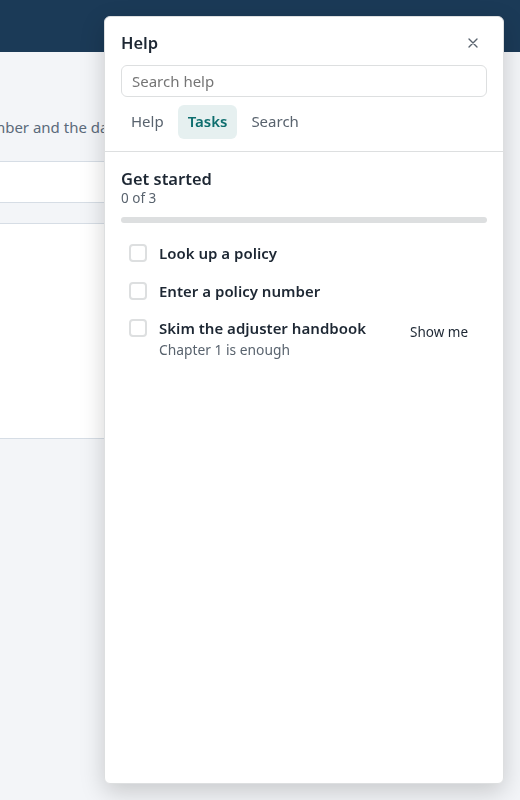
The goal: a "Get started" list with three tasks. One ticks when the reader clicks the Look up policy button, one ticks when the policy number field has a value, and one is ticked by hand and opens a document.
Before you start, open the demo app at http://localhost:5200/claims/new in a tab, and in the studio press Use the open site. If the third task should open a document, create it first (New content, Documentation link) and publish it.
- In the studio, pick Resource center under Kind and press Create. Give it a name.
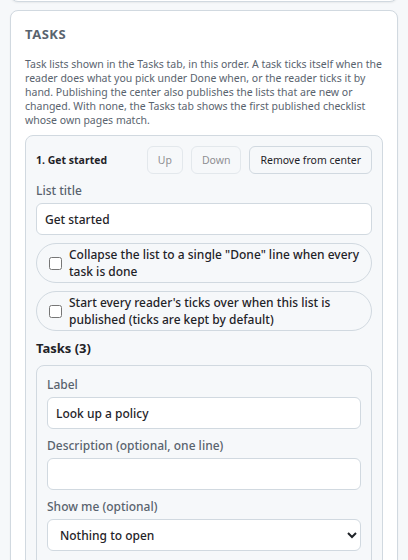
- In the Tasks card press Add task list. A list called Tasks appears. Change List title to Get started.
- Press Add task three times. Every new task starts as a manual task called Task 1, Task 2 and Task 3.
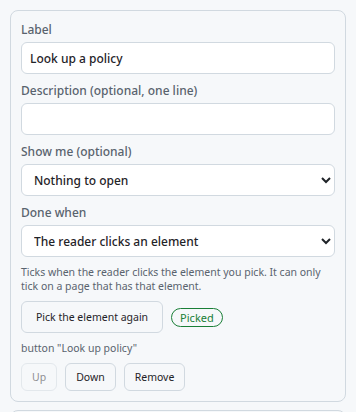
- For the first task, set Label to Look up a policy. Under Done when choose The reader clicks an element, press Pick the element, then click Look up policy in the page. The studio shows Picked and the tag of the element.
- For the second task, label it Enter a policy number, choose The reader fills in a field under Done when, press Pick the element and click the Policy number input.
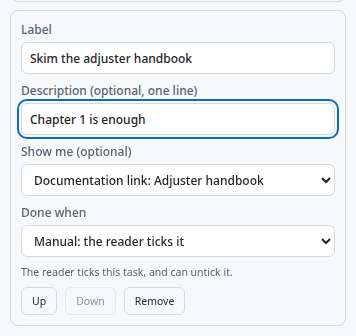
- For the third task, label it Skim the adjuster handbook, add a one-line Description, and under Show me (optional) choose the document. Leave Done when on Manual.
- Press Publish. Publishing the center also publishes the new task list, so you do not publish it separately. If a task has a problem, the Checks panel at the bottom names it and Publish stays off.
The choices under Done when
| Choice | Ticks when | Notes |
|---|---|---|
| The reader clicks an element | The reader clicks the element you picked | Only on a page that has that element |
| The reader fills in a field | The field you picked has any value | Checked about every second and a half, so the tick follows typing with a short delay |
| An element appears on the page | The element you picked is visible | Useful for a confirmation message |
| The reader reaches a page | The page address matches your pattern, for example /claims/:id/confirmation |
Works from any page |
| Another walkthrough or process is completed | The content you choose is completed | The content must be published |
| The last step is completed | The walkthrough this task starts reaches its last step | Only for tasks made with Or add a task for |
| Manual: the reader ticks it | The reader ticks the box, and can untick it | For work Guidepost cannot see |
A task with a Show me target gets a Show me button. The target can be a walkthrough, process, announcement or document. A document opens the way its own settings say, in a new tab by default.
To reorder tasks press Up and Down on a task. To delete one press Remove and confirm. To take a whole list out of the center without deleting it, press Remove from center; the checklist stays in your library and can be added again with Or pick an existing checklist.
How a reader sees and completes tasks
The reader opens the help bubble and chooses Tasks. Tasks that tick by themselves tick even while the panel is closed, as long as the reader is on a page where the player runs. A manual task has a tick box the reader can press again to undo.
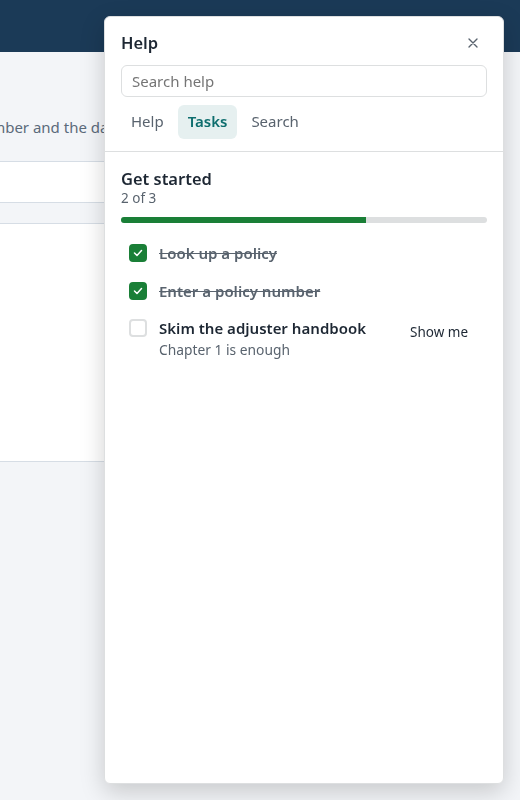
- Ticks are kept. Progress is stored in the browser profile per task. Publishing a new version of the list keeps every tick whose task still exists. A task you delete and add again is a new task and starts unticked. To start everyone over on purpose, switch on Start every reader's ticks over when this list is published.
- Another browser starts from zero. Progress does not travel between profiles or machines.
- Open task badge. Switch on Add the number of open tasks to the help bubble badge and the bubble shows how many tasks are not done, added to the count of unseen announcements. It is off by default and disappears at zero.
- Hide completed. With Collapse the list to a single "Done" line when every task is done, a finished list shrinks to one line reading the list title and Done.
Recipe 2: make search find things
Search runs on the reader's device and nothing about searches is collected.
What is indexed
- The name, summary and keywords of every walkthrough, process and document or link in a visible section.
- The task labels of the lists shown in Tasks.
- Step titles of walkthroughs and stage labels of processes.
- For a document or link, the host name and the file name of its address.
Not searched: step text, announcement text, tip text, and the contents of documents.
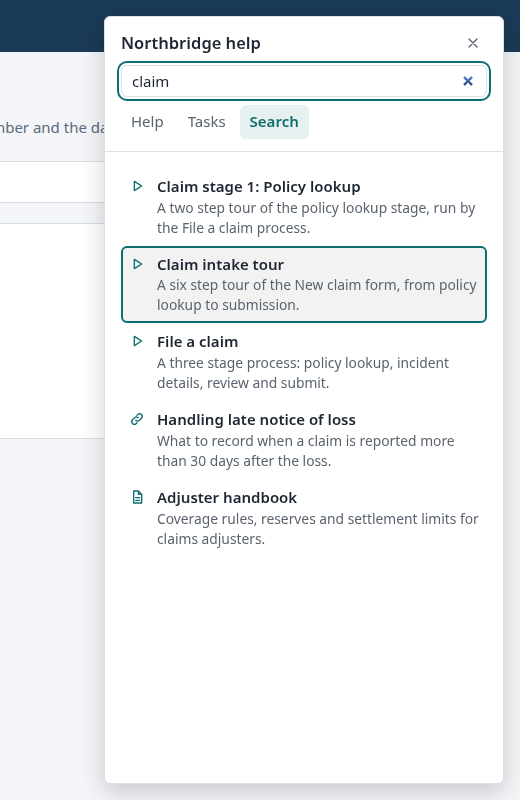
How matching works. Every word the reader types must match the start of a word in the item. "claim" finds "Claims" and "pol look" finds "Policy lookup", but "laim" finds nothing. Capitals and accents are ignored, so "handbook" and "Handbóok" are the same. A hit in the name ranks above a hit in keywords, which ranks above the summary. An item that belongs to the current page ranks higher but other items still show. There is no typo tolerance.
Setting it up
- Keywords. Open a walkthrough, process or document and fill Keywords with the words readers use that are not in the name, comma separated. A walkthrough or process with no keywords uses its tags.
-
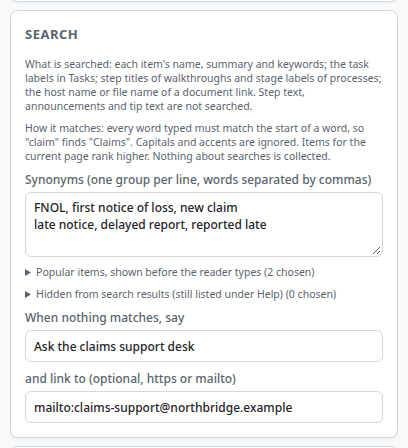
Synonyms. In the Search card write one group per line, words or phrases separated by commas:
FNOL, first notice of loss, new claim
late notice, delayed report, reported late
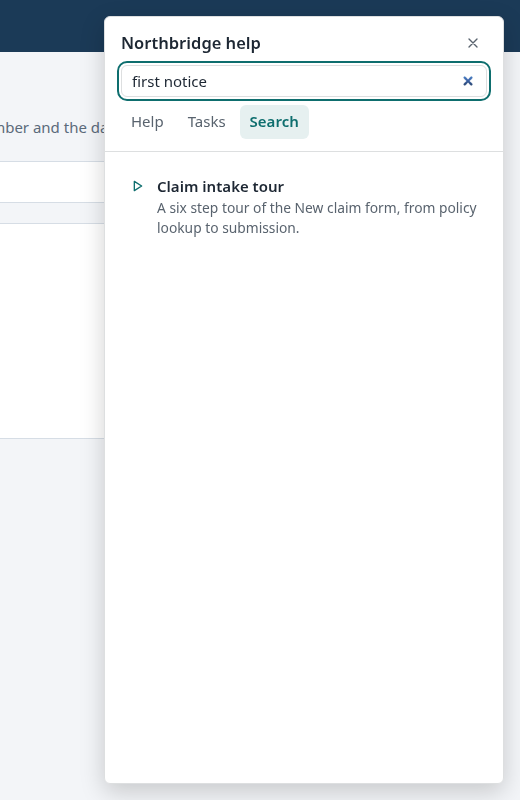
Any phrase in a group finds items that match any other phrase in it. A reader who types
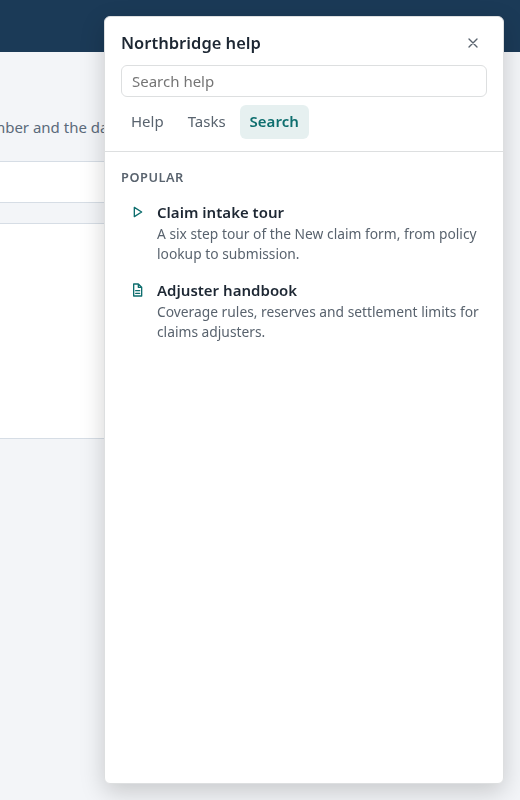
first noticefinds the intake tour, which only says FNOL in its keywords. A phrase typed in part counts too, sofirst notworks. A literal name match still ranks above a synonym match. 3. Popular items. Open the list (it is collapsed and shows how many are chosen) and tick the items to show under Popular before the reader types. Nothing is tracked; you choose the list. 4. Hidden from search results. Open the list and tick items that must never appear in search. They stay listed under Help, and an excluded item is also left out of Popular. 5. When nothing matches. Write a line such as Ask the claims support desk and, optionally, an https or mailto link. It shows under "Nothing matches that search." 6. Search-only sections. Add a section, set Shown in to Search only and tick the items. They are found by search and not listed under Help, which suits long-tail articles. 7. Page ranking. A section limited to a page (Pages this section shows on) is hidden elsewhere, in Help and in Search. Items in a section for the current page rank higher in Search.
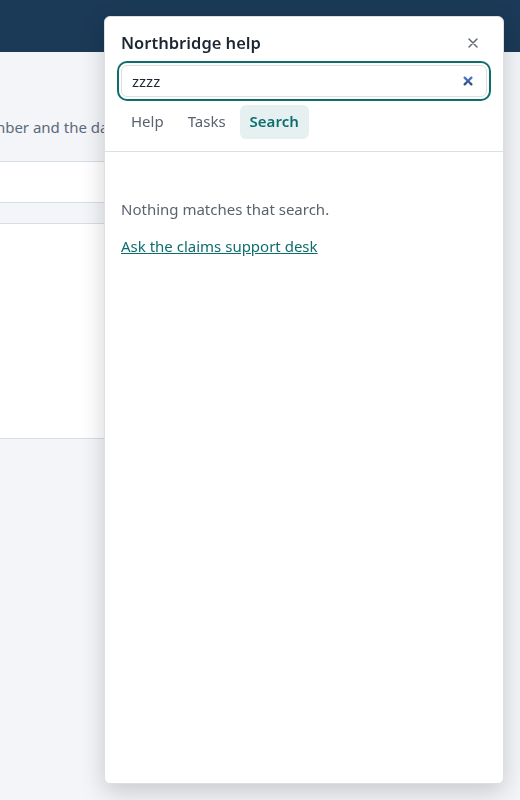
Keyboard and screen readers. The search box is a combobox. Down and Up move through the results, Enter opens the highlighted one (or the first when none is highlighted), the first Esc clears the box and the second closes the panel. The number of results is announced in a polite live region. Each result is a listbox option. If the Search tab is switched off, the search box is not drawn.
Recipe 3: put the help button in the page header
By default the help bubble is a round button at the bottom right. To put it in the header:
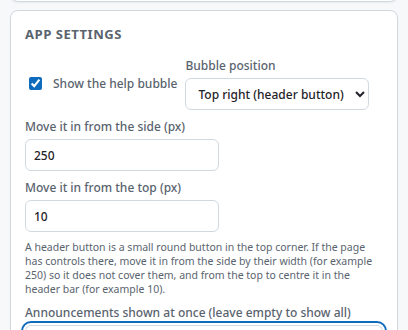
- In the studio, scroll to App settings. Set Bubble position to Top right (header button) or Top left.
- Open the page. The header button is small (32 px) and sits in the corner. If the page has controls there, it covers them. In the demo, the user name sits at the right of the top bar.
- Set Move it in from the side (px) to the width of the controls in that corner. The demo needs about 250. Set Move it in from the top (px) to centre the button in the header bar; 10 suits the demo's 52 px bar.
- Reload the page and check it. A top banner announcement is drawn at the top of the page too, so look at both together.

Troubleshooting
| Symptom | Likely cause |
|---|---|
| A click task never ticks | It only ticks on a page that has the picked element, and the player must be running there (site access granted, the center published). Pick the element again if the page changed. |
| A field task ticks a moment after typing | The field is checked every second and a half. It ticks as soon as the field has any value, not when it is valid. |
| The Tasks tab says "No tasks right now" | No list is attached, the list is not published, or Pages Tasks shows on does not match this page. |
| A tick disappeared | The task was deleted and added again (new task, new tick), the list has "Start every reader's ticks over" on and was published, or the reader is in another browser profile. |
| The badge shows nothing | The option is off, or every task is done. |
| Search finds nothing for a word you can see | Matching is from the start of a word, so a fragment from the middle does not match. Step text and the contents of documents are not indexed. |
| An item is missing from search | It is in the hidden list, it is unpublished or disabled, it is not in a visible section, or its section is limited to other pages. |
| A synonym does nothing | The group is on a single line with the phrases separated by commas, and the item must match the other phrase by name, keywords or summary. Keywords on the item count. |
| The Search tab or the search box is missing | The Search tab has its Show box unticked. |
| The Tasks or Help tab is missing | Same: Show is unticked for that tab. |
| The help bubble covers the page header | Move it in with the offsets in App settings. |
Limits
- Tasks have no due dates and no reminders.
- Search does not read step text, announcement text or document contents, and has no typo tolerance.
- Popular is a list you choose. It is not built from what readers search or open.
- Progress stays in the browser profile. Nothing is reported anywhere.