Checklist
What it is
A checklist is a list of tasks with progress. Each task has a label, an optional description, an optional Show me target (a walkthrough, process, announcement or resource), and a goal that marks it done. Tasks tick themselves when the goal is met, even while the resource center is closed, so the user does not have to remember to tick anything. For work Guidepost cannot see, a task can be manual: the user ticks it, and can untick it.
When to use it
Use a checklist for onboarding and for any set of things a person should do once: set up notifications, take the main tour, file a first claim. It gives a new user a visible path and gives you a way to see what they have not done. For a single guided job, a walkthrough is simpler.
The example: Get started as an adjuster
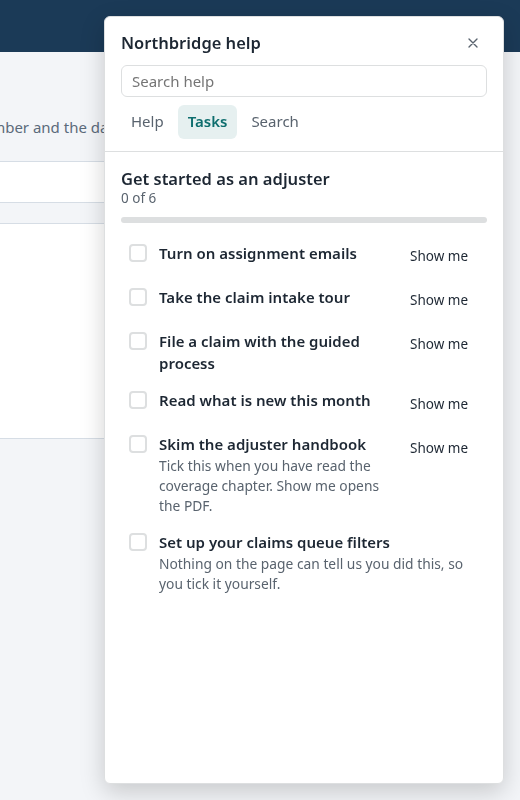
The demo's checklist has six items, four that tick themselves and two that the adjuster ticks by hand (Skim the adjuster handbook, whose Show me opens the PDF, and Set up your claims queue filters, which has no Show me), and is shown on the Tasks tab of the resource center.
| Item | Starts | Done when |
|---|---|---|
| Turn on assignment emails | Set up assignment emails walkthrough | The user clicks the assignment email checkbox on Settings (element-clicked) |
| Take the claim intake tour | Claim intake tour | That walkthrough is completed (content-completed) |
| File a claim with the guided process | File a claim process | That process is completed |
| Read what is new this month | The What is new announcement | That announcement is completed |
Build it in the studio
- Build or import the content the items start: the two walkthroughs, the process and the announcement.
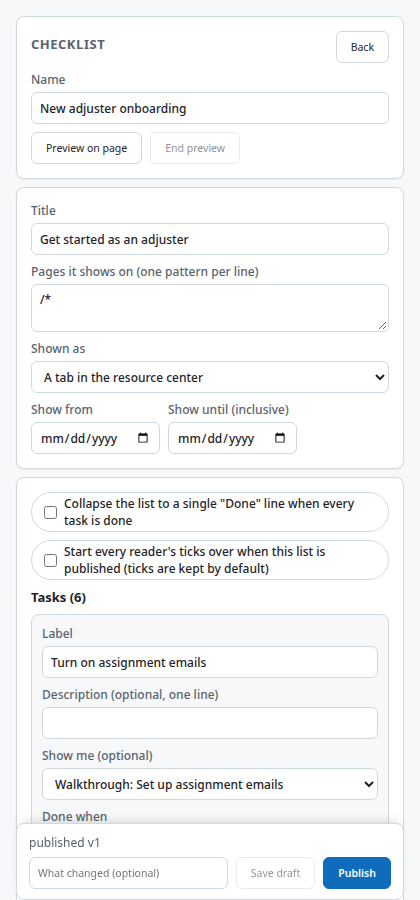
- New content, Kind Checklist, Create. Name it New adjuster onboarding and set its title, which the user sees: Get started as an adjuster.
- Set Shown as to the resource center, so the list appears on the Tasks tab. The alternative is a standalone progress launcher on matching pages.
- Press Add task for each task, or Add for a task that starts from a walkthrough or process. Give it a label, an optional description, an optional Show me target, and set Done when.
- For an element goal, press the picker and click the element in the page. For a content goal, choose the content.
- Preview all, then Publish. Make sure the resource center has the Tasks tab enabled.
How it behaves for the user
The Tasks tab shows a progress bar and the tasks. A task with a Show me button starts its content, for example the tour, or opens its document. When the goal is met the task shows as done and the bar moves; a manual task has a tick button. Progress is saved in the browser profile and is kept when you publish a change, because ticks follow the task, not the version.
Settings that matter
| Goal | Done when |
|---|---|
| Element appears | The element is on the page |
| URL matches | The page address matches a pattern |
| Last step completed | The linked walkthrough reaches its last step |
| Element clicked | The user clicks the element |
| Field filled | The field has a value |
| Content completed | The linked content is completed |
| Manual | The user ticks it by hand |
Gotchas
- A goal on an element only ticks on a page where that element exists, and only while the player is running there. The demo's first item can only tick on Settings.
- Show me can open a walkthrough, process, announcement or resource. A task without a Show me target has no button.
- Publishing keeps every tick whose task still exists. Turn on "Start every reader's ticks over when this list is published" to clear them instead.
- Progress belongs to the browser profile. A second browser starts from zero.
- A checklist shown as a launcher with no items shows nothing, and Checks warns with
checklist-empty.
Images on this page
| File | What it shows |
|---|---|
checklist-tasks.png |
The Tasks tab |
studio-checklist-editor.png |
The checklist editor |