Walkthrough
What it is
A walkthrough is a guided tour. Each step points at one element on the page with a tooltip, can dim the rest of the screen, and moves on when the user presses Next or does what the step asks. A walkthrough can follow the user across pages, and across the stages of a single-page form that keeps one address.
When to use it
Use a walkthrough when a screen has an order to it and a first-time user needs to see it once: filling in a form, finding a menu, finishing a task that touches several fields. If the guidance is about one field, use field tips. If the job has stages the user may leave and return to, use a process, which is built from walkthroughs.
The example: Claim intake tour
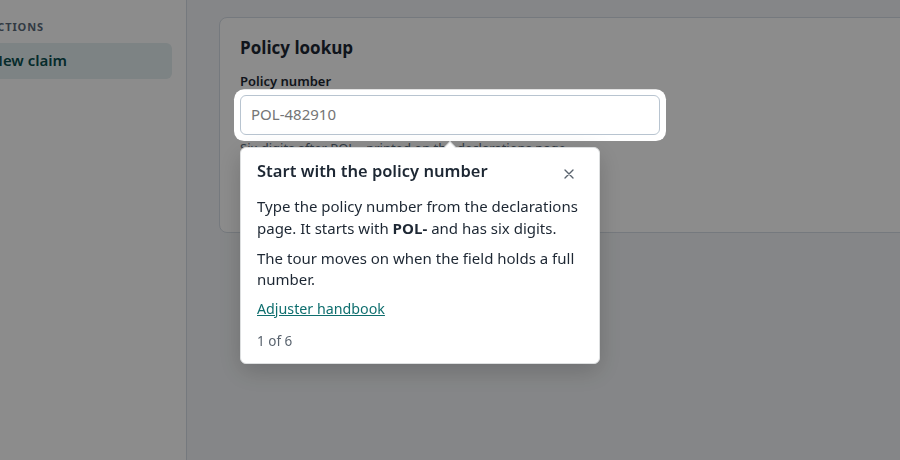
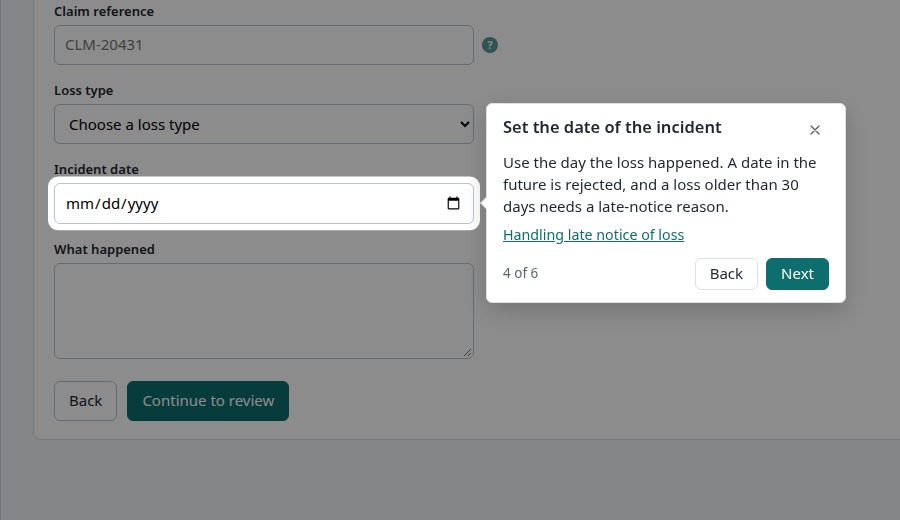
The demo has a six step tour on the New claim page. It walks an adjuster from the policy number to the Submit claim button.
| Step | Anchor | Advances when |
|---|---|---|
| Start with the policy number | Policy number field | The field holds a full number (input-anchor, minimum length 10) |
| Look up the policy | Look up policy button | The Loss type field appears (element-appears) |
| Enter the claim reference | Claim reference field | The user presses Next |
| Set the date of the incident | Incident date field | The user presses Next |
| Continue to review | Continue to review button | The confirmation checkbox on the review stage appears |
| Check and submit | Submit claim button | The user presses Finish |
Build it in the studio
- In the studio, with the application key
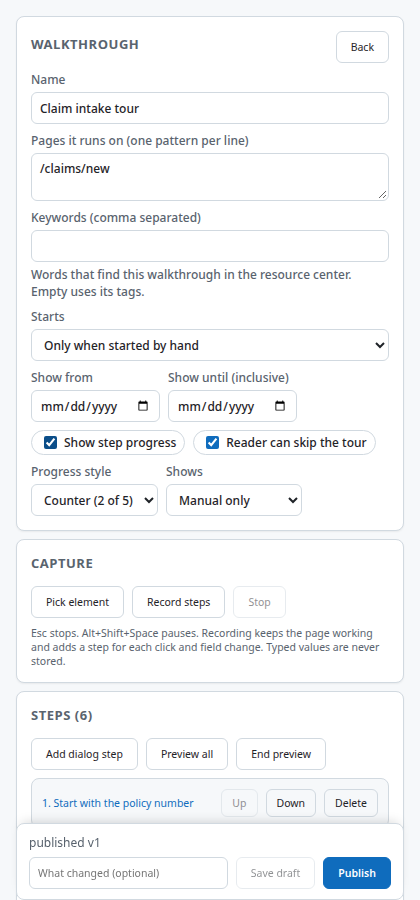
northbridgeand the demo open in the tab, choose New content, Kind Walkthrough, Create. - Name it Claim intake tour. Under Pages it runs on, enter
/claims/newso the tour only runs there. Leave Starts on Only when started by hand. - Press Pick element, then click the Policy number field in the page. The studio adds a step anchored to that field. Repeat for each element. Because the form keeps one address across its stages, reveal a stage in the page (look up a policy, for example) before you pick an element on it.
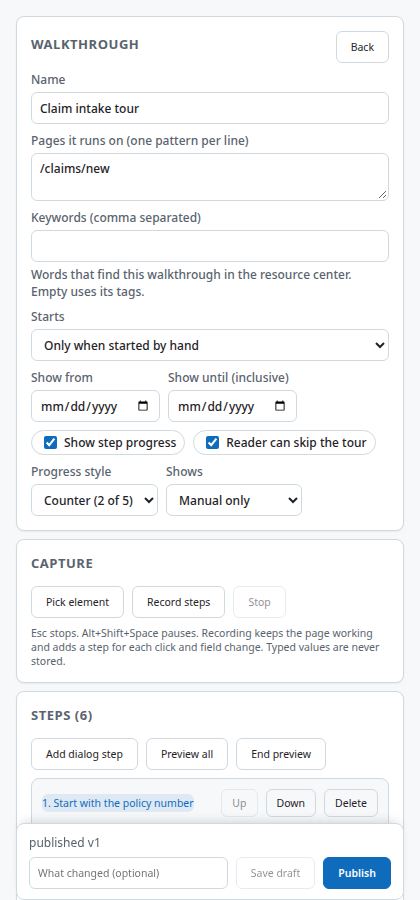
- Open each step. Give it a title and a short body. Write the body as an instruction in plain language, and say what happens next.
- Set Advance on the steps that wait for the user. For the policy number, choose the option that waits for typing and set the minimum length. For the two stage changes, choose the option that waits for an element to appear, and pick an element that exists only on the next stage: the Loss type field for the first change, the confirmation checkbox for the second.
- Under Checks, fix any errors. A warning about a fragile anchor means the element has fewer than two ways to be found; ask the application team for a
data-testid. - Press Preview all with the New claim page in the active tab. Press End preview to stop.
- Press Publish. Choose Show on site in the content list if you want it available to users.
How it behaves for the user
The demo walkthrough has a manual trigger, so it does not start by itself. The user opens the help bubble in the corner, finds Claim intake tour under Guided tours, and presses it. The tour dims the page around the first field, shows the tooltip, and shows a counter such as 1 of 6. If the user leaves part way, a resume chip offers to continue from the saved step on the next page load.
Other triggers start a tour on page load, when an element becomes visible, when an element is clicked, from a launcher, or after the user has been idle. See triggers and frequency.
Settings that matter
| Setting | What it does | In the example |
|---|---|---|
| Starts (trigger) | What starts the tour | Only when started by hand, from the help bubble |
| Shows (frequency) | How often it starts by itself | Manual only |
| Show progress and style | A counter, dots or a bar | Counter |
| Allow skip | Lets the user close the tour | On |
| Advance per step | Next button, click, typing, element appears or disappears, page change, form submitted | Mixed, see the table |
| When the element is missing | Skip, end, show without an anchor, or pause | Pause |
| Focus | Spotlight, block everything outside, modal or none | Spotlight |
Gotchas
- A step whose element is not on the page waits for up to the step's wait time, then follows the missing-element rule. On a form with stages, set it to pause rather than skip, or the tour will jump over steps that have not appeared yet.
- Pick the element that tells you a stage has arrived with care. When an element is hidden, Guidepost may match a look-alike that is visible, such as the policy number field standing in for the claim reference field, and conclude that the stage has already appeared. Choose an element that looks different from everything else on the previous stage, such as a select box where the previous stage had only text fields, and check it in Preview.
- Typed values are never stored. The recorder and the typing rule only note that a field was changed or has a given length.
- Only one tour runs in a tab at a time.
- Moving a step up or down changes the order for Next, but the Advance rule that waits for an element still refers to the same element.
Images on this page
| File | What it shows |
|---|---|
walkthrough-step-policy.png |
Step 1 on the New claim page |
walkthrough-step-date.png |
Step 4 with a document link |
studio-walkthrough-editor.png |
The walkthrough editor |
studio-step-editor.png |
A single step in the editor |