Document link
What it is
A document link is a resource: a name, an address and a short summary. It can point at a PDF, a web article, a video, a FAQ or a contact page. Other content refers to it by name. A resource is not shown by itself; it appears where something links to it.
When to use it
Use one whenever guidance should point at a longer source: the handbook behind a field tip, the article behind a tour step, the policy behind an announcement. It keeps the guidance short and the detail one press away.
The example: handbook PDF and article
The demo has two resources.
| Resource | Type | Address |
|---|---|---|
| Adjuster handbook | Document | http://localhost:5200/files/adjuster-handbook.pdf |
| Handling late notice of loss | Link | http://localhost:5200/articles/late-notice |
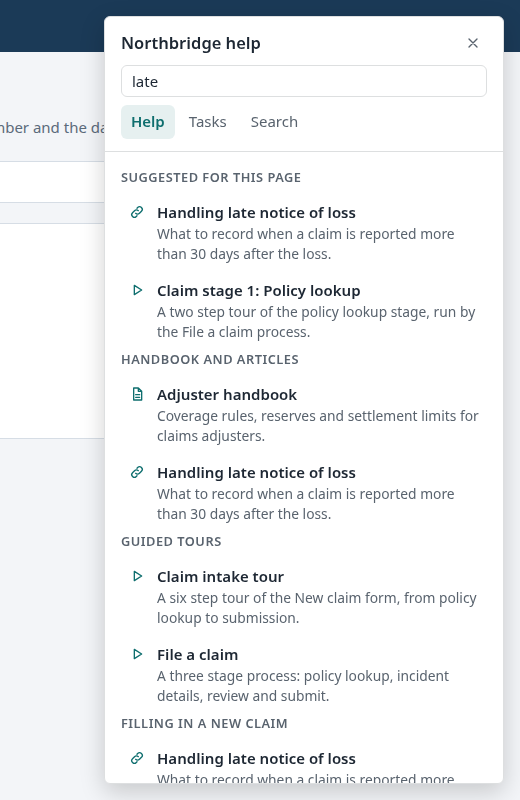
They show up in two places: under Handbook and articles in the resource center, and as links inside tour steps and field tips that name them.
Build it in the studio
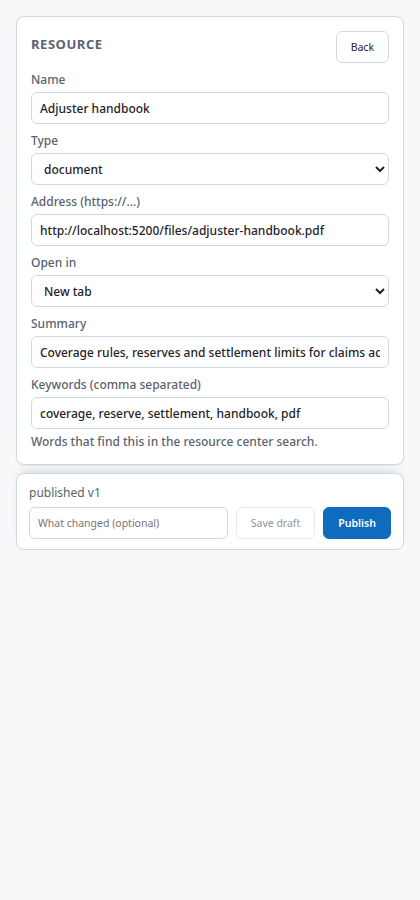
- New content, Kind Documentation link, Create. Name it Adjuster handbook.
- Set Type to document, paste the address in Address (https://...), and choose how it opens: new tab, same tab, side panel or dialog. Add a summary of a sentence.
- Save draft, then Publish. Repeat for the article, with Type link.
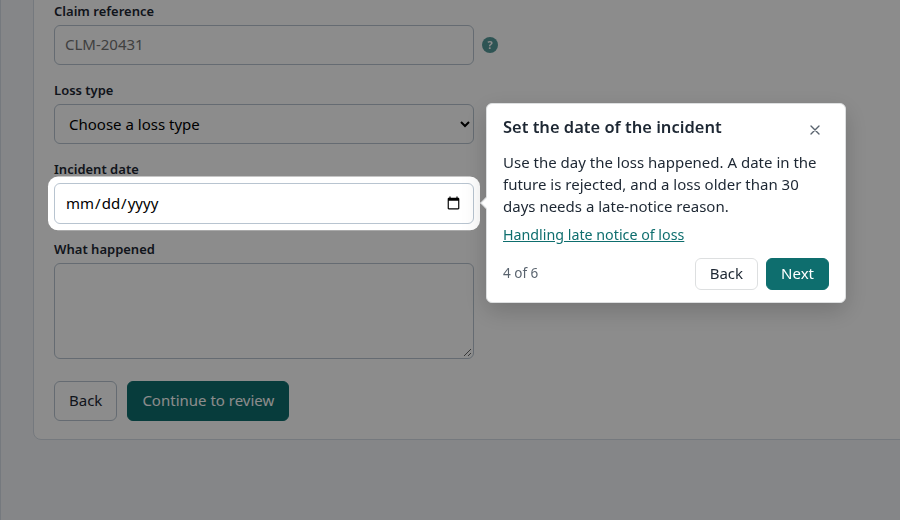
- To attach a link to a step, open the walkthrough, open the step, and tick the resource under its links. Step 1 can also create a new link in place with New link. The link appears at the bottom of the tooltip.
- To list it in the help center, add it to a section in the resource center editor.
- For a tip, tick the resource in the tip's links.
How it behaves for the user
In a tour step, the tooltip shows the link text under the body. Pressing it opens the address as the resource says. In the resource center, the row shows the name and summary. A document opens in a new tab or in the side panel, depending on the setting. Opening a resource is recorded as an event.
Settings that matter
| Setting | Values |
|---|---|
| Type | Document, link, video, FAQ, contact |
| Address | A full URL. Use https in production |
| Open in | New tab, same tab, side panel, dialog |
| Summary | Shown in lists and used by search |
| Keywords | Extra words that Search matches |
Gotchas
- The side panel and dialog options embed the page. Many sites refuse to be embedded, and the application's own content security policy can block it. Use a new tab for anything you do not control.
- Links are not checked. A dead address stays published until you notice.
- The demo's handbook is a generated one-page PDF served by the demo server.
- Resources are not a valid checklist item. A checklist starts walkthroughs, processes and announcements.
Images on this page
| File | What it shows |
|---|---|
document-link-step.png |
A step with an attached link |
document-link-list.png |
The links in the resource center |
studio-resource-editor.png |
The resource editor |