Resource center
What it is
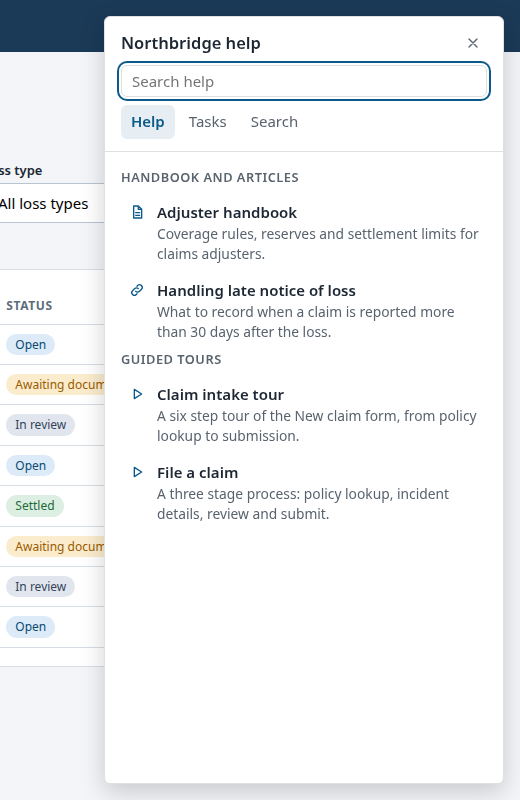
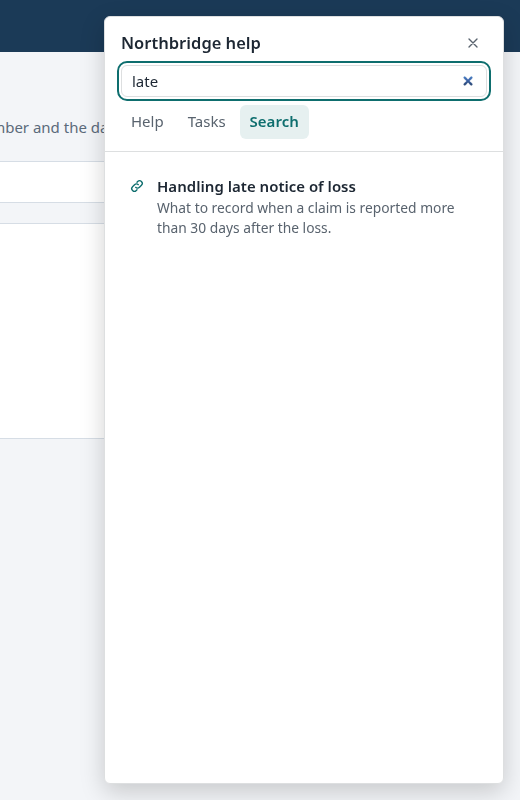
The resource center is the panel behind the help bubble in the corner of the page. It has up to three tabs. Help lists tours, documents and articles in titled sections. Tasks shows the task lists. Search finds anything in the center by name, summary or keyword. It also lists unread announcements under What is new.
How to set up the Tasks and Search tabs, with screenshots, is in Tasks and Search, step by step.
When to use it
Use a resource center as the one place to look for help. Every other kind can be reached from it: a walkthrough or process starts from its row, a document opens from its row, a launcher can open it on a given tab. Build it last, once the content it lists exists.
The example: Northbridge help center
The demo center has three sections on the Help tab, the onboarding checklist on Tasks, and Search with two synonym groups (typing FNOL or first notice finds the intake tour), a popular list of the intake tour and the handbook that shows before you type, and a contact-support fallback when nothing matches.
| Section | Items | Where it shows |
|---|---|---|
| Handbook and articles | Adjuster handbook (PDF), Handling late notice of loss | Always |
| Guided tours | Claim intake tour, File a claim | Always |
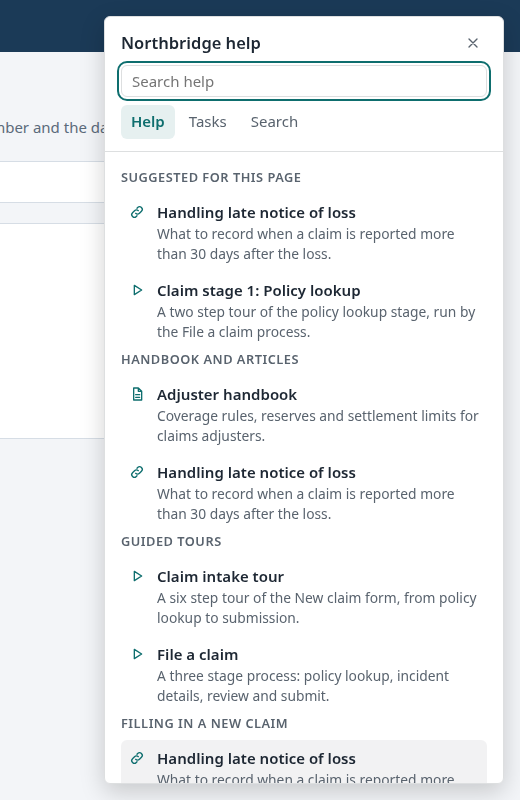
| Filling in a new claim | Handling late notice of loss, Claim stage 1: Policy lookup | Suggested on /claims/new |
Build it in the studio
- Make sure the content and the documents exist. The center only lists what is already published.
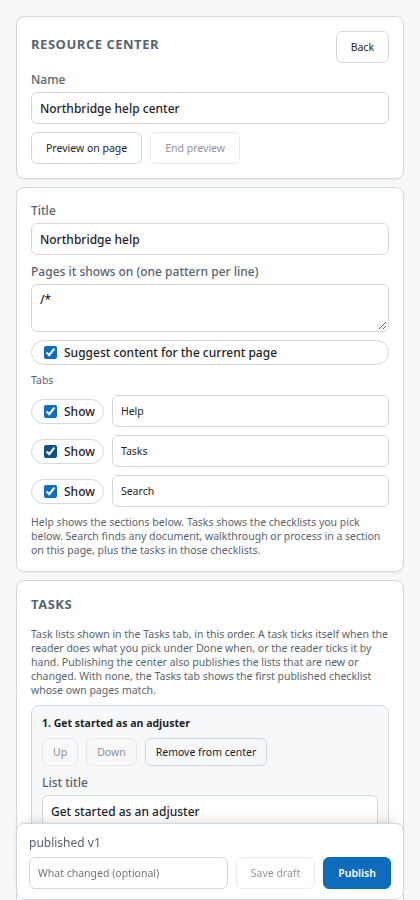
- New content, Kind Resource center, Create. Name it Northbridge help center. Set the title the user sees.
- Under Sections, press Add section. Name it, then add the items it lists: documents, walkthroughs, processes.
- For the New claim section, set the page pattern to
/claims/newand turn on auto-suggest at the top, so items from this section are suggested on that page. - Choose the tabs. Help, Tasks and Search can each be relabelled and turned off. A label you type is shown as typed. Under Tasks, press Add task list to write tasks right here, or pick a checklist you already have. Publishing the center publishes its new or changed task lists with it.
- In the studio's App settings, keep Show the help bubble on and choose the corner.
- Preview all, then Publish.
How it behaves for the user
The help bubble opens the panel. The Help tab shows the sections. On the New claim page, items from the page-matched section are listed first as suggestions. Pressing a tour row starts the tour; pressing a document row opens it. The Tasks tab shows the checklist. Search narrows all rows as the user types, matching names, summaries and keywords.
Settings that matter
| Setting | What it does |
|---|---|
| Tabs | Help, Tasks and Search, each relabelled or turned off |
| Sections | A title and a list of items |
| Section page pattern | Limits where a section is suggested |
| Auto-suggest | Lists a page-matched section's items first on that page |
| Tasks | Task lists added or picked here, and an option to count open tasks on the bubble badge |
| Help bubble position | Bottom right, bottom left, or a header button at top right or top left, with an optional pixel offset, in App settings |
Gotchas
- A section's page pattern controls suggestions. The section's items still appear in the Help list on every page.
- Segments do not filter what the center shows.
- The center needs the help bubble, or a launcher with the Open the resource center action, to be opened. With the bubble turned off in App settings and no launcher, nobody can open it.
- Items that point at archived or unpublished content are skipped. Importing a bundle reports them as missing references. A task list that is still a draft is flagged in the editor and published with the center.
- The panel is 400 px wide and is capped to the viewport on narrow screens.
Images on this page
| File | What it shows |
|---|---|
resource-center-help.png |
The Help tab |
resource-center-suggested.png |
Suggestions on the New claim page |
resource-center-search.png |
The Search tab |
studio-resource-center-editor.png |
The resource center editor |