Process
What it is
A process is a journey made of stages. Each stage is a walkthrough, and the process decides which stage the user is in by looking at the page. It shows a stepper with the stage names, remembers where the user got to, and offers to resume if they leave.
When to use it
Use a process when the job is longer than one tour and the user may stop part way: filing a claim, onboarding a customer, a month-end close. A single tour is enough when the whole thing fits in one sitting and one screen. A process earns its extra setup when you want the stepper, resume, and the freedom to give each stage its own tour.
The example: File a claim
The demo process has three stages on /claims/new. The page keeps one address for all three, so each stage says how to recognise itself: the stage is current when a field that belongs to it is on the page.
| Stage | Walkthrough | Current when |
|---|---|---|
| Policy lookup | Claim stage 1: Policy lookup | The Look up policy button is on the page |
| Incident details | Claim stage 2: Incident details | The Loss type field is on the page |
| Review and submit | Claim stage 3: Review and submit | The confirmation checkbox is on the page |
Build it in the studio
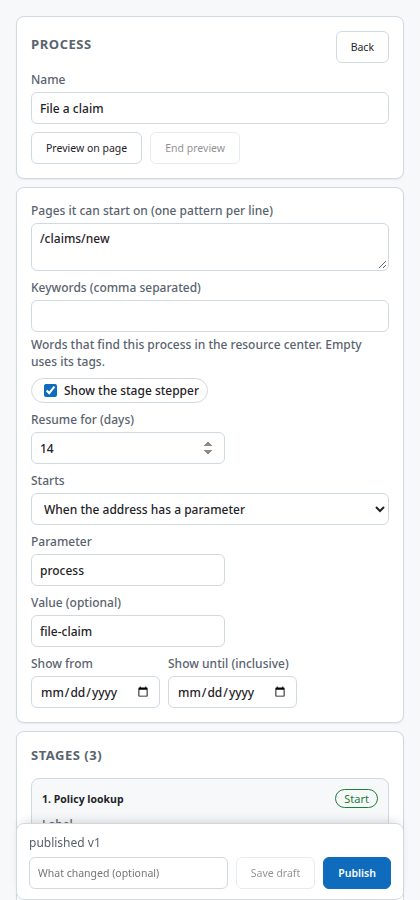
- Build one short walkthrough for each stage first. The process only references them. Give them clear names such as Claim stage 1: Policy lookup, and set their page to
/claims/new. - New content, Kind Process, Create. Name it File a claim.
- Under Stages, use Add stage for each walkthrough in order. Give each stage a label; the labels are what the stepper shows.
- For each stage, set when it applies. Because the three stages share an address, use a condition on an element that exists only in that stage and looks different from the elements of the other stages.
- Set the trigger to a URL parameter named
processwith the valuefile-claim, and the frequency to once. The process then starts when someone opens/claims/new?process=file-claim, and it is also listed in the resource center. Set Resume for (days) to how long a half-finished process stays resumable. The demo uses 14. - Preview all, then Publish.
How it behaves for the user
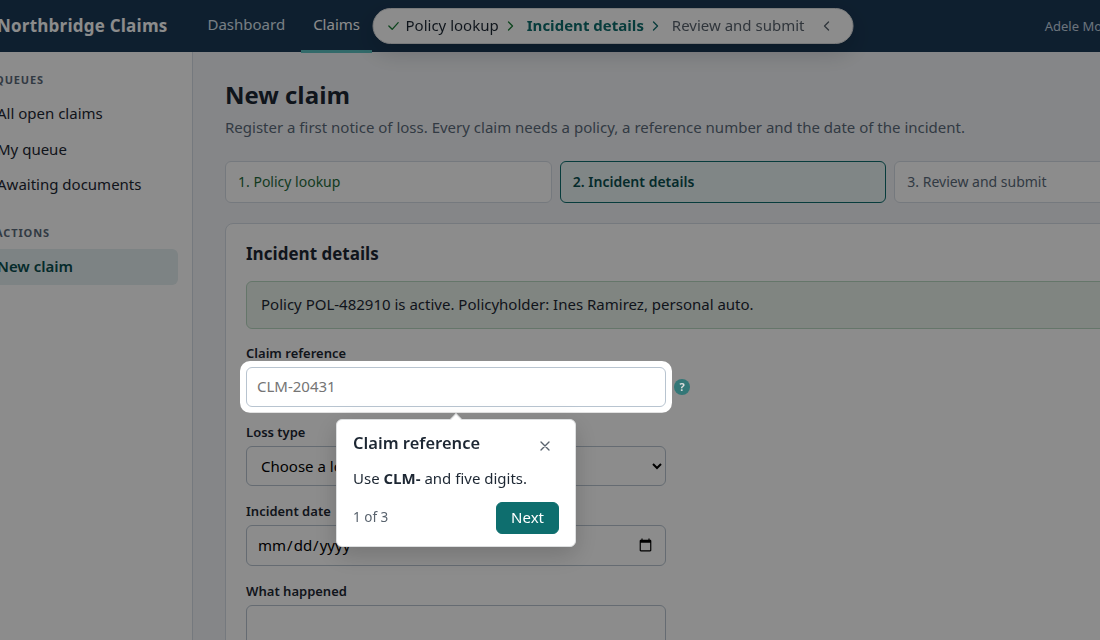
The user opens /claims/new?process=file-claim, for example from a link in an email or an internal page. A stepper appears at the top with the three stage names and the current one marked. Each stage runs its walkthrough. When the user moves to the next stage in the page, the process notices the next panel and starts its walkthrough. If they close the tab and come back within the resume window, a resume chip offers to pick up at the stage they were on.
Settings that matter
| Setting | What it does | In the example |
|---|---|---|
| Stages | Ordered list of walkthroughs with labels | Three |
| Stage condition | Which page state means this stage is current | Panel element exists |
| Stage transition | Go to the next stage, branch, jump, or end | Next, with the last stage ending |
| Trigger and frequency | What starts the process | URL parameter process=file-claim, once |
| Show stepper | Whether the stage names are drawn | On |
| Resume for | Days a paused process can resume | 14 |
| Goal | What counts as finished | Last step completed |
Gotchas
- A process with a launcher or resource-center trigger only starts when the user asks. The Checks panel warns when such a process has a frequency other than manual only, because the frequency would do nothing.
- Deleting or archiving a stage walkthrough leaves the process pointing at nothing. Importing a bundle reports missing references for this reason.
- Give each stage a condition that only one stage can satisfy, using an element that looks different from the other stages' elements. A hidden element can be matched to a visible look-alike, for example one text field standing in for another, which makes two stages look current at once. The demo uses a button, a select box and a checkbox for exactly this reason.
- A process started from its own entry in the resource center draws the stepper like any other start. A stage's walkthrough that is listed in the center on its own runs as a plain tour with no stepper, because it is not started as part of the process. List the process in the center, not its stages, unless you want that.
- Stage walkthroughs also appear in the content list as ordinary walkthroughs. Name them so they sort together.
Images on this page
| File | What it shows |
|---|---|
process-stepper.png |
Stage 2 of the process with the stepper |
studio-process-editor.png |
The process editor |