Studio tour
The studio is the side panel where all content is authored. Open it from the toolbar icon with Open Authoring Studio. It only works once author mode is on in the extension's options page.
These screenshots are 420 px wide, which is about the width of a docked side panel. The panel scrolls; each screenshot shows one card.
Regenerating the screenshots
Every image on this page is produced by pnpm examples:screenshots, which loads the demo bundle into a fresh studio and captures each card. The script is safe to run again and overwrites the images in place. The side panel is still changing (the content list rows, the resource center editor and the app settings card in particular), so run it after any change to the panel and commit the result.
Application and sites
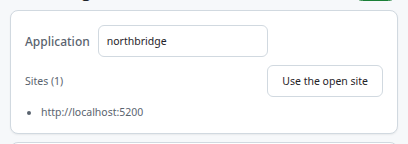
The first card holds the application key and the sites the application runs on. The key names a group of content, for example northbridge. Content belongs to one application. The line under the key lists the sites that have been granted, or No sites yet.
Press Use the open site while the application is open in the browser tab. The browser asks for permission to run on that origin. Accept it; nothing runs on a site you have not granted. The origin is added to the application's first environment.
App settings
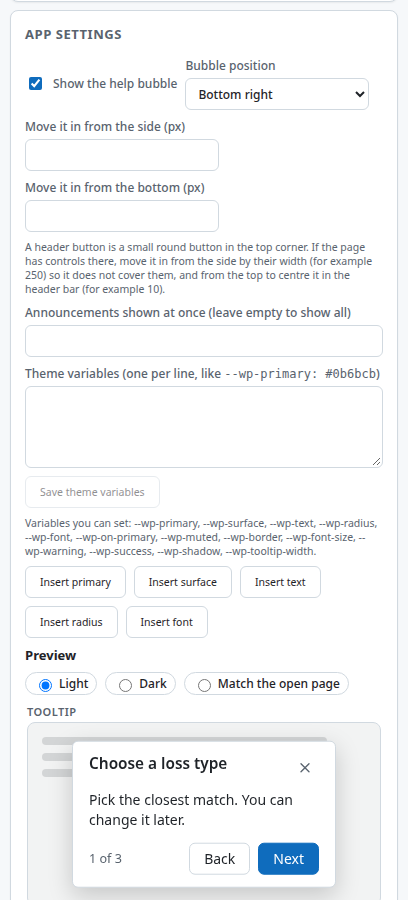
Settings that apply to the whole application, not to one item:
- Show the help bubble, and which corner it sits in.
- Announcements shown at once. Leave it empty to show every due announcement. Set a number to queue the rest.
- Theme variables, one per line, such as
--wp-primary: #0b6bcb. Only the documented variables are accepted. The card tells you when a line is not one of them.
Press Save theme variables to apply changes to the theme. The other settings save as you change them.
New content
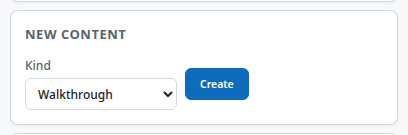
Choose a kind, then Create. The nine kinds are Walkthrough, Process, Tip set, Launcher, Hotspot, Announcement, Checklist, Resource center and Documentation link. A new item opens in its editor as a draft with a placeholder name.
Content list
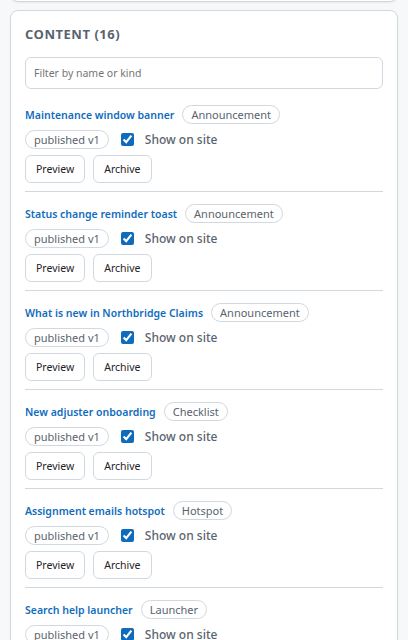
Every item in the application, with its kind, its status and version, and three controls:
- Preview shows the draft on the page in the active tab, ignoring its trigger and frequency. Nothing is recorded.
- Show on site switches the published version on or off for users. Reload the page to apply the change.
- Archive removes the item from the list and from the site. It asks first.
An item that has never been published has version 0 and cannot be shown on site until you publish it.
Walkthrough editor
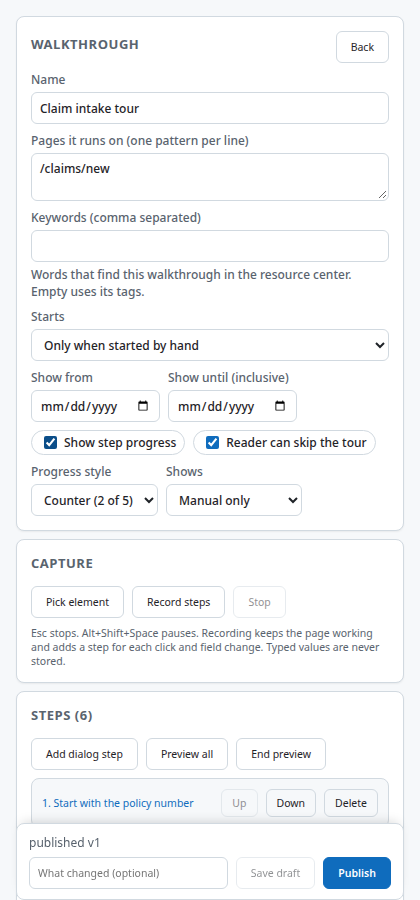
The editor for a walkthrough lists its steps, with buttons to add a dialog step, pick an element, record steps and preview. Open a step to edit its anchor, text and advance rule. Checks lists problems; errors block publishing, warnings do not. See the walkthrough example for a full build.
Resource center editor
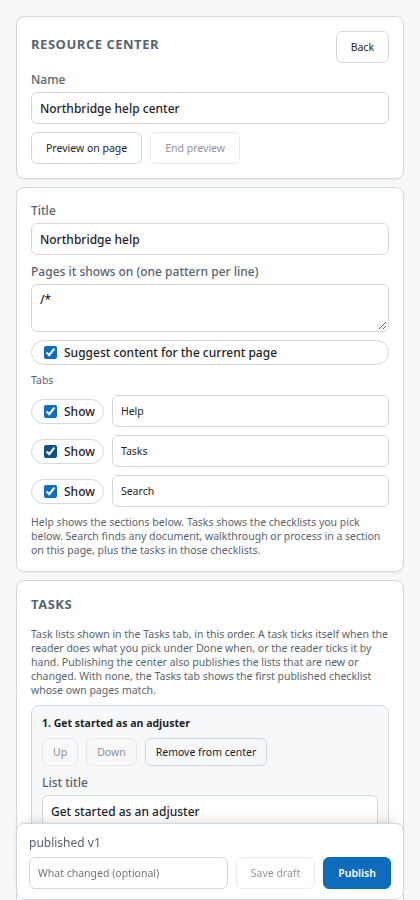
Choose the title and the tabs, then add sections and the items each lists. Page patterns on a section drive the suggestions on those pages. See the resource center example.
Bundles
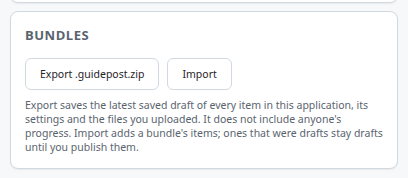
Export writes every item in the application, drafts included, to a .guidepost.zip. Import reads one. The studio always imports with the new-version rule: an item that already exists gets a new version and the old one stays in its history. The result of an import appears as a status line under the card.
Images on this page
| File | What it shows |
|---|---|
studio-application-card.png |
Application and sites |
studio-app-settings.png |
App settings |
studio-new-content.png |
New content |
studio-content-list.png |
Content list |
studio-walkthrough-editor.png |
Walkthrough editor |
studio-resource-center-editor.png |
Resource center editor |
studio-bundles.png |
Bundles |
Gotchas
- The studio takes the application tab from the tab you last used. If Preview or Use the open site says to open the application first, switch to its tab and try again.
- When you open
sidepanel.htmlas a normal tab, as the screenshot script does, the tab that counts as the application is the last web page you focused. - Importing the demo twice adds a version to each item rather than duplicating it.