Field tips
What it is
A tip set attaches small pieces of help to form fields. There are two kinds. A guidance tip shows an icon next to the field that opens a short explanation. A validation tip checks what the user typed and shows a message when the value breaks a rule. Both are drawn by Guidepost on top of the page; the application's own markup and validation are untouched.
When to use it
Use field tips when the help belongs to one field: where a number comes from, what format it takes, why a date is rejected. They work on forms you cannot change. Use a walkthrough when the user needs the whole form explained in order. Field tips do not replace the application's own validation; they catch the common mistake earlier and say what to do about it.
The example: Claim form field tips
One tip set on /claims/new with three tips, all for fields on the Incident details stage.
| Field | Kind | What it does |
|---|---|---|
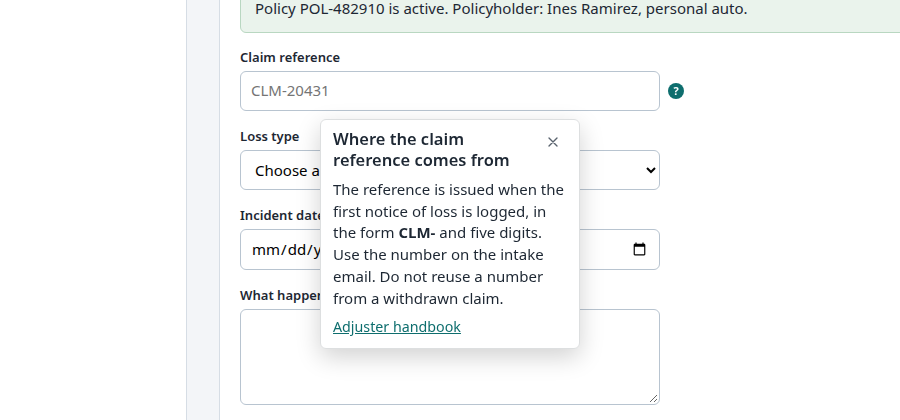
| Claim reference | Guidance | An icon after the label opens Where the claim reference comes from, with a link to the handbook |
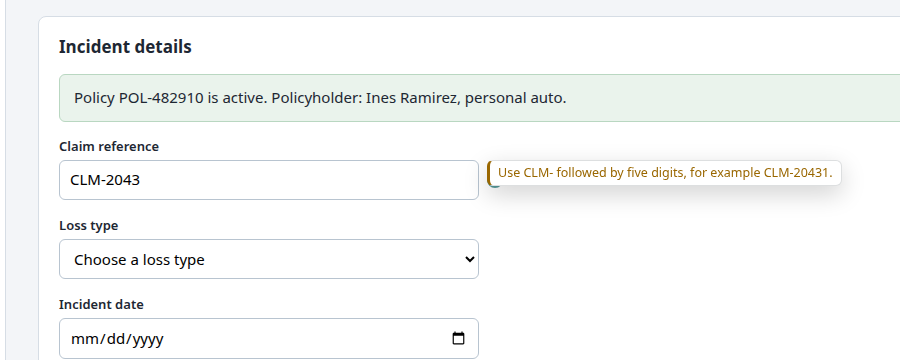
| Claim reference | Validation | Warns unless the value matches ^CLM-\d{5}$: Use CLM- followed by five digits, for example CLM-20431. |
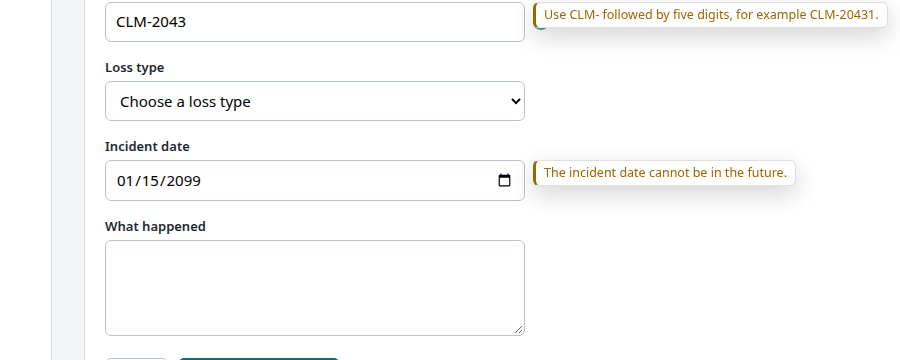
| Incident date | Validation | Warns if the date is in the future, or more than 30 days old |
Build it in the studio
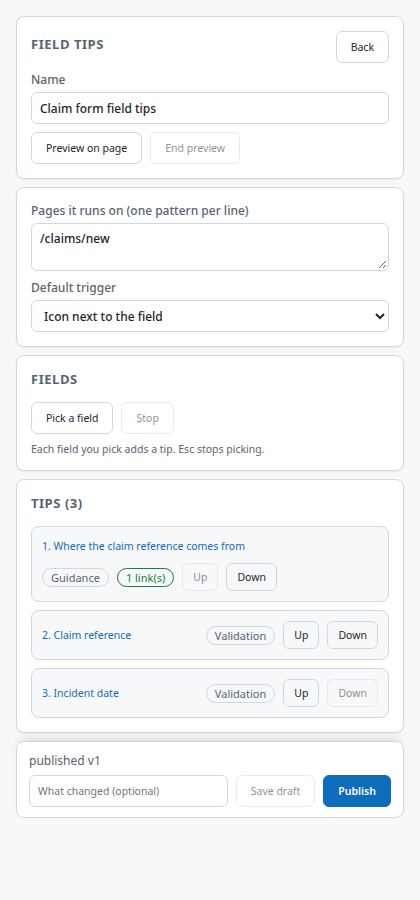
- New content, Kind Tip set, Create. Name it Claim form field tips and set the page to
/claims/new. - Reveal the Incident details stage in the page (look up a policy). Under Fields, press Pick a field, then click the Claim reference field. Pick it a second time, then pick Incident date. Press Stop when done. Each pick becomes a tip.
- Open the first Claim reference tip. Set Kind to guidance, Shows on to the icon, Icon position to after the label. Write the title and body.
- Open the second Claim reference tip. Set Kind to validation. Choose Rule
regexand enter the pattern^CLM-\d{5}$. Write the message in the form the user can act on. Set Severity to warning. - Open the Incident date tip. Choose the rule that rejects future dates. Press Add another rule and add the rule that limits how many days back a date may be. Give each rule its own message. Under Show the message when, leave Any rule fails, so a future date or an old date each triggers the hint.
- Choose where the hint sits against the field if the default placement covers something.
- Preview all, type a bad value into each field, then Publish.
How it behaves for the user
The guidance icon sits after the label and does nothing until pressed. The validation tips stay quiet while the field is empty; an empty value passes every rule except Required. Nothing shows while the user is still typing for the first time. When they leave the field with a value that fails, the message appears beside it. From then on it updates as they type and disappears as soon as the value passes. The application's own error text, if any, is not changed.
Settings that matter
| Setting | Values |
|---|---|
| Kind | Guidance, validation |
| Shows on | Icon, focus, hover (guidance) |
| Icon position | After the label, inside the field, after the field |
| Rules | Required, regex, length, date not in the future, date within N days |
| Show the message when | Any rule fails, or every rule fails |
| Severity | Info or warning |
| Hint position | Auto, below, above, beside the field, before the field |
Gotchas
- Rules never run on an empty value, except Required. An optional field is not nagged.
- A date rule with an unparseable value passes. Check what format the field actually produces; the demo uses a native date input, which gives
YYYY-MM-DD. - A pattern that is not valid regex is treated as passing, so a typo in the pattern turns the tip off rather than blocking the user. Test it in Preview.
- Extra rules on a guidance tip do nothing; the Checks panel warns with
extra-rules-on-guidance. - Tips for a field that is hidden are not drawn, which is why the demo's tips do not show on the Policy lookup stage. Guidepost finds a hidden field by comparing what is visible with what it remembers, so two fields that look alike (same kind of box, similar label, same attributes) can be confused: a tip meant for the claim reference could attach to the policy number. The demo gives the two fields different titles and labels so they stay apart. Check this in Preview on every stage.
- A tip set cannot be limited to one stage of a form that does not change its address. Conditions on the page are checked when the page loads or the address changes, not each time the form changes.
- The user's value is checked in the page and is not sent anywhere.
Images on this page
| File | What it shows |
|---|---|
field-tips-guidance.png |
Guidance tip on the claim reference |
field-tips-validation-reference.png |
Regex validation on the claim reference |
field-tips-validation-date.png |
Date validation on the incident date |
studio-tipset-editor.png |
The tip set editor |