Launcher
What it is
A launcher is a small persistent control that Guidepost places next to an element on the page. It can be an icon, a button or a text link. Pressing it runs an action: open the resource center, start a walkthrough, open a document or a URL.
When to use it
Use a launcher when people need help from a specific place and do not want to wait for a tour. A help icon beside a search box, a link beside a form title that says how to fill it in, a button that restarts a tour. A launcher is always there, so it suits things people come back to. For something that should catch attention once, use a hotspot.
The example: Search help launcher
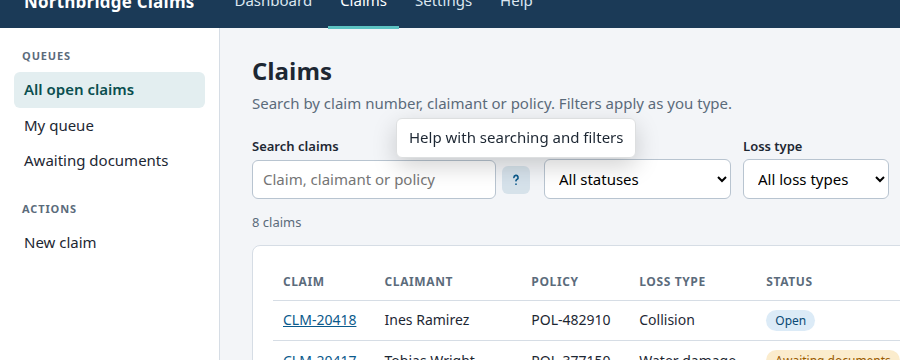
The demo puts a help icon to the right of the search box on the Claims page. Its tooltip reads Help with searching and filters. Pressing it opens the resource center on the Help tab.
Build it in the studio
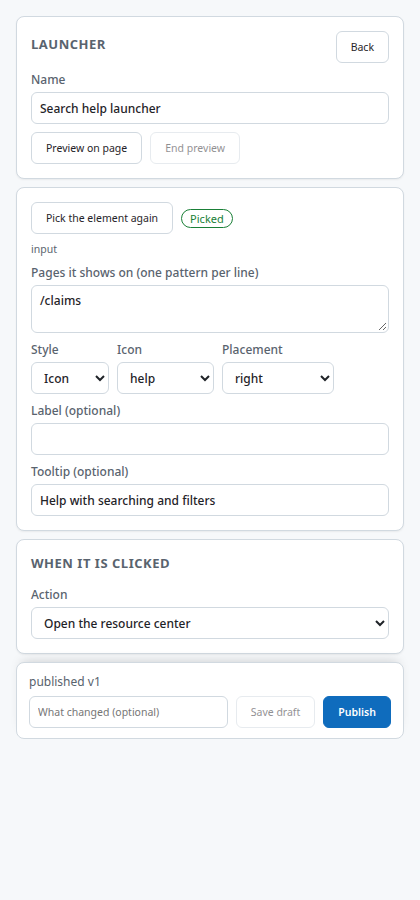
- New content, Kind Launcher, Create. Name it Search help launcher and set the page to
/claims. - Press Pick element and click the search box in the page. The launcher is anchored to it.
- Set Style to icon and Icon to help. Set the placement to the right of the element. Add a tooltip so the control has a name for screen readers and hover.
- Under When it is clicked, choose Open the resource center and the Help tab.
- Preview all, then Publish.
How it behaves for the user
The icon follows the search box if the layout changes. It sits above the page but below any dialog the application opens. Pressing it opens the resource center. If the anchor element is not on the page, the launcher is not drawn.
Settings that matter
| Setting | Values |
|---|---|
| Style | Icon, button, link |
| Icon | Help, info, play, document, new |
| Label | Text for the button and link styles |
| Placement | Side of the element, or automatic |
| Tooltip | Hover and screen reader text |
| Action | Open resource center (with a tab), start a walkthrough or process, open a resource, open a URL |
Gotchas
- A launcher and the help bubble can collide if the anchor is in the bottom corner. Move the bubble in the app settings.
- A walkthrough that should only start from a launcher needs its trigger set to launcher. A walkthrough with another trigger also starts by itself.
- Announcements cannot use a launcher trigger.
- An icon launcher with no tooltip has no accessible name. Always set one.
Images on this page
| File | What it shows |
|---|---|
launcher-search.png |
The launcher beside the claims search box |
studio-launcher-editor.png |
The launcher editor |