Announcement
What it is
An announcement is a message Guidepost shows over the page, not tied to an element. It has five displays: modal, top banner, bottom banner, toast and slide-out. It can carry buttons, an image or video, and a schedule.
When to use it
Use an announcement to tell people something: a release, a rule change, a maintenance window. Choose the display by how much attention the message deserves:
| Display | Use it for |
|---|---|
| Modal | What is new, a change people must read before carrying on |
| Banner | A notice that stays at the edge of the page: maintenance, an outage, a deadline |
| Toast | A short reminder in the corner that fades into the background |
| Slide-out | A longer note that should not cover the work |
The examples
The demo has three announcements, one per display most teams use.
| Name | Display | Where | When |
|---|---|---|---|
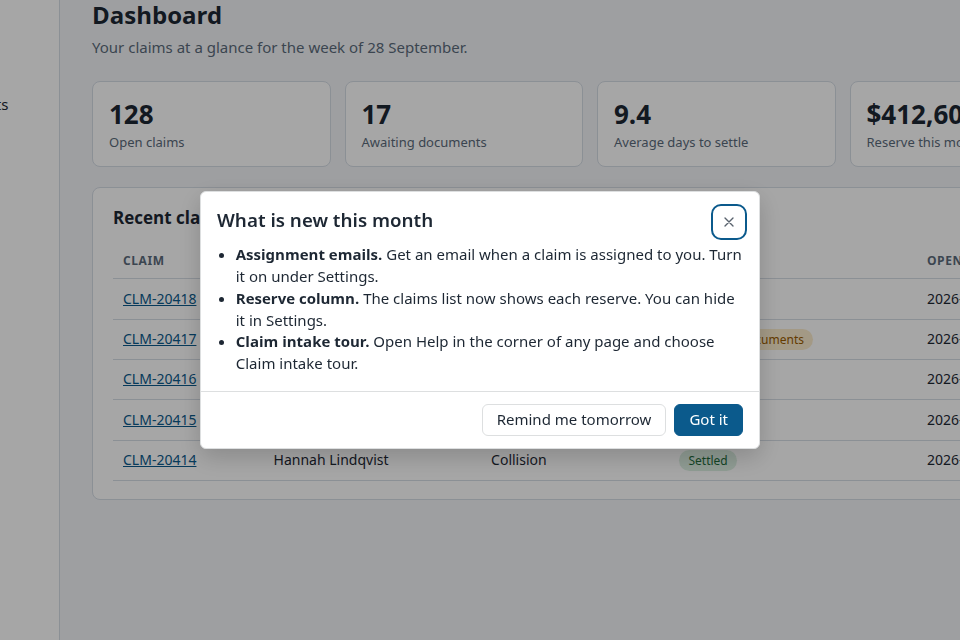
| What is new in Northbridge Claims | Modal | Dashboard | On page load, once for each version |
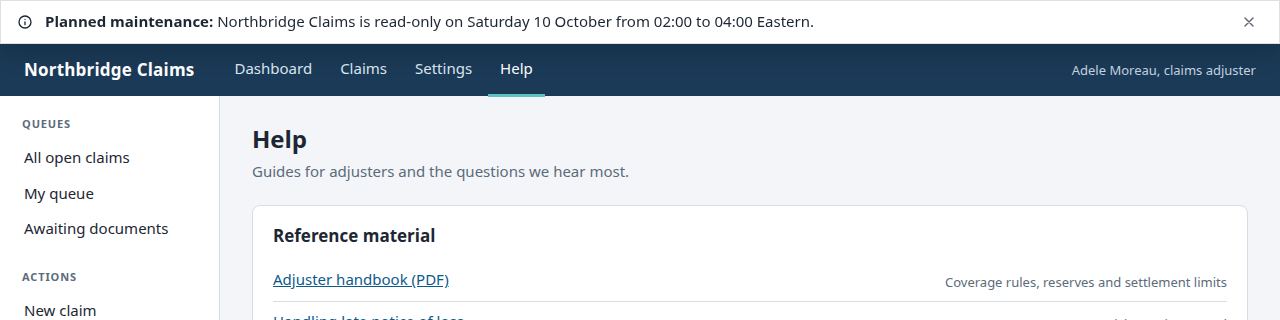
| Maintenance window banner | Top banner | Help | Every visit, dismissible |
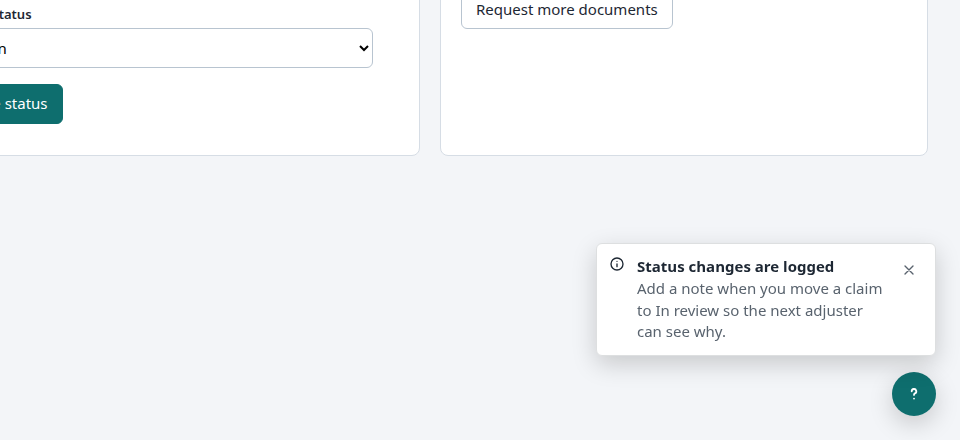
| Status change reminder toast | Toast | Any claim page | On page load, once |
Build it in the studio
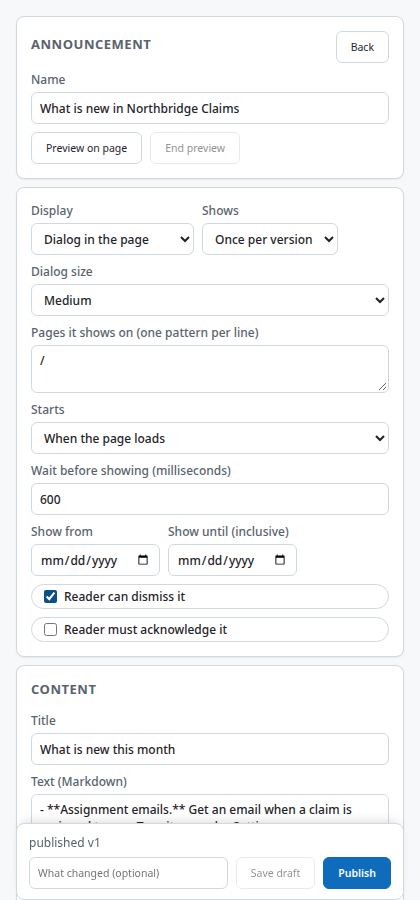
- New content, Kind Announcement, Create. Name it What is new in Northbridge Claims and set the page to
/. - Set Display to modal and Dialog size to medium.
- Write the title and the body. Markdown lists are supported, so a short list of changes reads well. Keep it to a few lines.
- Add buttons: Got it with the action acknowledge, and Remind me tomorrow with the action snooze for 1440 minutes.
- Choose when it appears: on page load, with a short delay. Set Frequency to once per version, so the modal comes back only when you publish a new version.
- Preview all, then Publish.
- For the banner, create a second announcement, set Display to top banner, and turn on the option that pushes the page down instead of covering it. For the toast, set Display to toast, with a title and one sentence.
How it behaves for the user
The modal appears about half a second after the dashboard loads. Got it records that the user has seen this version and the modal does not return. Remind me tomorrow hides it for 24 hours. The banner sits at the top, pushes the page down and has a close button. The toast appears in the corner, above the help bubble, and can be closed.
An announcement whose trigger is the resource center does not appear by itself. It is listed under What is new in the help bubble, and unread ones add to the bubble's badge.
Settings that matter
| Setting | What it does |
|---|---|
| Display | Modal, top banner, bottom banner, toast, slide-out |
| Dialog size or side | Width of a modal, edge of a slide-out |
| Trigger | Page load (with a delay), element visible, element clicked, URL parameter, idle, resource center, manual |
| Frequency | Once, once per version, every visit, until completed |
| Dismissible and acknowledge | Whether it can be closed, and whether the user has to confirm |
| Schedule | Start and end dates |
| Announcements shown at once | An app setting that queues extra announcements |
Gotchas
- With the frequency set to once, a user who has seen an announcement never sees it again, whatever you edit. Use once per version for content you will revise.
- If several announcements are due on one page, the application setting for announcements shown at once decides how many show. The rest wait.
- A banner covers the top of the page unless you set it to push the page down. Check that it does not hide the application's own header.
- A launcher cannot trigger an announcement. Use the resource center trigger or manual.
- Schedule dates are compared in the browser's clock.
Images on this page
| File | What it shows |
|---|---|
announcement-modal.png |
The modal on the dashboard |
announcement-banner.png |
The banner on Help |
announcement-toast.png |
The toast on a claim |
studio-announcement-editor.png |
The announcement editor |