
Introduction#
Large Language Models (LLMs) have become a cornerstone of modern AI applications, from chatbots that provide customer support to content generation tools for images and videos. They power virtual assistants, automated translation systems, and personalized recommendation engines, showcasing their versatility across industries. However, running these models on a local machine has traditionally been a complex and resource-intensive task, requiring significant configuration and technical expertise. This complexity often deters beginners and even intermediate users who are eager to explore the capabilities of LLMs in a private, local environment.
Ollama revolutionizes this process with its clean and simplified approach. Unlike traditional methods that require manual dependency management and complex setups, Ollama leverages Docker to provide a ready-to-use environment. This not only saves time but also ensures that even beginners can start using advanced LLMs without extensive technical knowledge. By packaging open-source models such as LLaMA and Mistral into a user-friendly Docker-based system, Ollama eliminates the need for intricate setups and extensive dependencies.
Key Benefits of Local Deployment#
- Data Privacy: By hosting models locally, all your data and prompts stay on your machine
- Cost Efficiency: Avoid API usage costs associated with cloud-based LLMs
- Flexibility: Support for various open-source models and customization options
- Learning Opportunity: Gain hands-on experience with AI technologies without cloud dependencies
- No Internet Requirement: Once models are downloaded, they can run offline
In this comprehensive guide, we’ll walk through two methods to deploy Ollama with Open WebUI locally:
- Using Docker Compose (recommended for beginners and quick deployment)
- Manual setup (for advanced users who prefer greater control)
By the end of this article, you’ll have a robust local environment for deploying and interacting with cutting-edge LLMs.
Hardware Requirements#
Before starting, ensure your system meets these minimum requirements:
- CPU: 4+ cores (8+ recommended for larger models)
- RAM: 8GB minimum (16GB+ recommended, more better.)
- Storage: 10GB+ free space (models can range from 4GB to 50GB depending on size)
- GPU: Optional but recommended for faster inference (NVIDIA with CUDA support)
Note for Beginners: The larger the model, the more resources it will require. Start with smaller models like Mistral-7B if you have limited hardware.
Understanding Ollama and Open WebUI#
What is Ollama?#
Ollama is a lightweight tool designed to simplify the deployment of large language models on local machines. It provides a user-friendly way to run, manage, and interact with open-source models like LLaMA, Mistral, and others without dealing with complex configurations.
Key Features:
- Command-line interface (CLI) and API for seamless interaction
- Support for multiple open-source models
- Easy model installation and management
- Optimized for running on consumer hardware
- Built-in parameter customization (temperature, context length, etc.)
Official Repository: Ollama GitHub{:target="_blank" rel=“noopener noreferrer”}
What is Open WebUI?#
Open WebUI is an intuitive, browser-based interface for interacting with language models. It serves as the front-end to Ollama’s backend, providing a user-friendly experience similar to commercial AI platforms.
Key Features:
- Clean, ChatGPT-like user interface
- Model management capabilities
- Conversation history tracking
- Customizable system prompts
- Model parameter adjustments
- Visual response streaming
Official Repository: Open WebUI GitHub{:target="_blank" rel=“noopener noreferrer”}
Step-by-Step Implementation#
Method 1: Using Docker Compose (Recommended)#
Docker Compose offers the simplest way to deploy both Ollama and Open WebUI, especially for beginners. This method requires minimal configuration and works across different operating systems.
Prerequisites#
Before starting, ensure you have:
- Docker{:target="_blank" rel=“noopener noreferrer”} installed and running
- Docker Compose{:target="_blank" rel=“noopener noreferrer”} installed (often bundled with Docker Desktop)
- Terminal or command prompt access
Step 1: Create a Project Directory#
First, create a dedicated directory for our project:
mkdir ollama-webui && cd ollama-webuiStep 2: Create the Docker Compose File#
Create a file named docker-compose.yml with the following content:
version: '3.8'

services:
  ollama:
    image: ollama/ollama:latest
    container_name: ollama
    ports:
      - "11434:11434" # Ollama API port
    volumes:
      - ollama_data:/root/.ollama
    restart: unless-stopped

  open-webui:
    image: ghcr.io/open-webui/open-webui:main
    container_name: open-webui
    ports:
      - "3000:8080" # Open Web UI port
    environment:
      - OLLAMA_API_BASE_URL=http://ollama:11434
    depends_on:
      - ollama
    restart: unless-stopped

volumes:
  ollama_data:
For Beginners: This configuration creates two containers: one running Ollama (the backend) and another running Open WebUI (the frontend). They communicate with each other through the internal Docker network, with Ollama exposing port 11434 for API access and Open WebUI accessible on port 3000.
Step 3: Start the Services#
From your project directory, run:
docker-compose up -dThis command starts both services in detached mode (running in the background). The first time you run this, Docker will download the necessary images, which might take a few minutes depending on your internet connection.
Step 4: Access Open WebUI#
Once the containers are running:
- Open your web browser
- Navigate to http://localhost:3000
You’ll see the Open WebUI landing page and signup screen:

Step 5: Create an Account and Pull a Model#
After creating an account, you’ll need to pull a language model. The interface will look like this:

When you select a model to download, you’ll see a progress indicator:

Once the model is downloaded, you can start chatting:
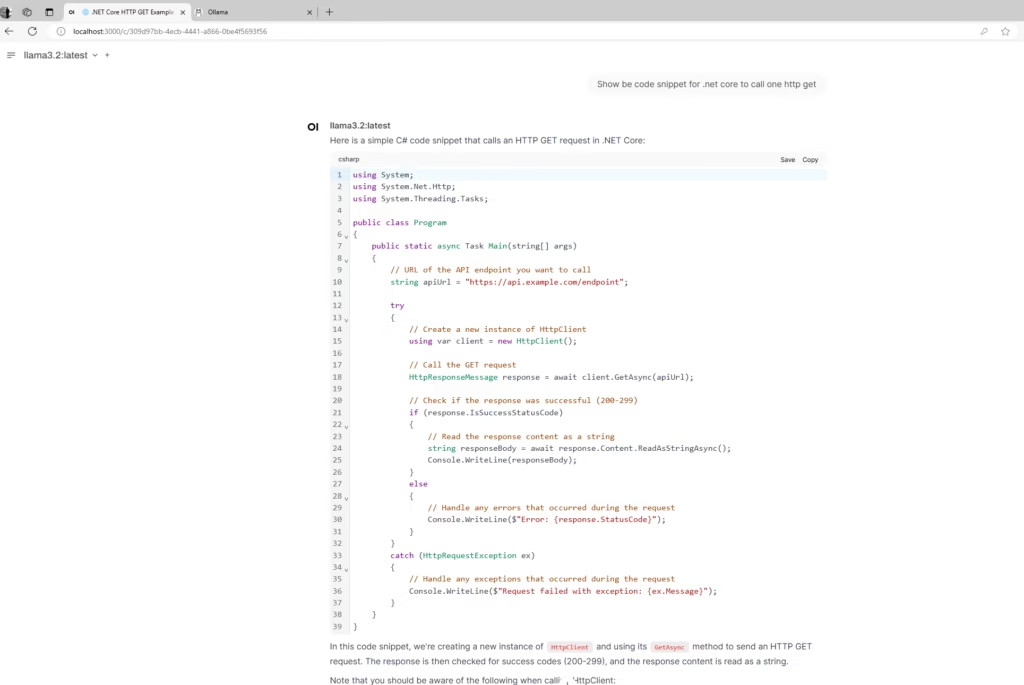
Method 2: Manual Setup#
For users who prefer more control over the installation or cannot use Docker, this method provides step-by-step instructions for setting up Ollama and Open WebUI separately.
Prerequisites#
Ensure you have:
- Node.js and npm{:target="_blank" rel=“noopener noreferrer”} (for Open WebUI)
- Python 3.7+{:target="_blank" rel=“noopener noreferrer”} and pip
- Git{:target="_blank" rel=“noopener noreferrer”}
Step 1: Install Ollama#
Download Ollama for your operating system:
Complete the installation by following the installer instructions
Open a terminal or command prompt and verify the installation:
ollama --versionPull a model to test your installation:
ollama pull mistral
Step 2: Install and Run Open WebUI#
Clone the Open WebUI repository:
git clone https://github.com/open-webui/open-webui.gitNavigate to the project directory:
cd open-webuiInstall Open WebUI using pip:
pip install open-webuiStart the server:
open-webui serveAccess the interface in your browser at http://localhost:3000
Working with Models#
Available Models#
Ollama supports a variety of open-source models. Here are some popular ones to try:
| Model | Size | Best For | Sample Command |
|---|---|---|---|
| Llama3 | 8B | General purpose, instruction following | ollama pull llama3 |
| Mistral | 7B | Balanced performance and size | ollama pull mistral |
| Gemma | 7B | Google’s lightweight model | ollama pull gemma |
| Phi-2 | 2.7B | Efficient for basic tasks | ollama pull phi |
| CodeLlama | 7B/13B | Programming and code generation | ollama pull codellama |
Pulling Models#
You can pull models either through the Open WebUI interface or using the Ollama CLI:
Using Open WebUI:
- Navigate to the “Models” section
- Search for the model you want
- Click “Download” or “Pull”
Using Ollama CLI:
ollama pull mistralNote: Model downloads can be large (4GB to 50GB). Ensure you have sufficient storage and a stable internet connection.
Creating Custom Models#
You can customize existing models with specific instructions using a Modelfile. This is especially useful for creating assistants with specialized knowledge or behavior.
Create a file named
Modelfile(no extension):FROM llama3 SYSTEM "You are an AI assistant specializing in JavaScript programming. Provide code examples when asked."Create your custom model:
ollama create js-assistant -f ModelfileRun your custom model:
ollama run js-assistant
Troubleshooting Common Issues#
Docker-Related Problems#
Issue: Docker containers won’t start
Solution: Ensure Docker Desktop is running and has sufficient resources allocatedIssue: “port is already allocated” error
Solution: Change the port mappings in docker-compose.yml or stop services using ports 11434 or 3000
Model-Related Problems#
Issue: Model download fails
Solution: Check your internet connection and try again; verify you have enough disk spaceIssue: Out of memory errors
Solution: Try a smaller model or increase Docker’s memory allocation (in Docker Desktop settings)Issue: Slow model responses
Solution: Consider using a GPU for acceleration or switch to a smaller model
Interface Issues#
Issue: Can’t connect to Open WebUI
Solution: Verify both containers are running withdocker container lsand check logs withdocker logs open-webuiIssue: Authentication problems
Solution: Reset your browser cache or try incognito mode; restart the container if needed
Best Practices for Local LLM Deployment#
Performance Optimization#
Allocate Sufficient Resources:
- Increase Docker memory limits for better performance
- If using NVIDIA GPU, enable CUDA support
Choose the Right Model Size:
- Smaller models (7B or less) for basic tasks and limited hardware
- Larger models (13B+) for more complex reasoning when hardware allows
Manage System Resources:
- Close resource-intensive applications when running models
- Monitor CPU, RAM, and GPU usage with system tools
Security Considerations#
Local Network Exposure:
- By default, the services are only available on localhost
- Be cautious when exposing to your network (e.g., changing to
0.0.0.0:3000:8080)
Data Privacy:
- While data stays local, be mindful of what information you input
- No data is sent to external servers unless you configure external API usage
Advanced Use Cases#
Integration with Other Applications#
Ollama provides an API (port 11434) that you can use to integrate with custom applications:
import requests

def query_ollama(prompt, model="llama3"):
    response = requests.post(
        "http://localhost:11434/api/generate",
        json={"model": model, "prompt": prompt}
    )
    return response.json()["response"]

result = query_ollama("Explain quantum computing in simple terms")
print(result)
RAG (Retrieval-Augmented Generation)#
You can enhance your models with local knowledge by implementing RAG:
- Use Open WebUI’s document upload feature
- Create embeddings from your documents
- Enable the model to reference these documents when answering questions
Conclusion#
Deploying Ollama with Open WebUI locally offers a powerful way to leverage cutting-edge AI technology without relying on cloud services. This approach provides complete data privacy, cost savings, and a valuable learning experience for developers at all levels.
By following this guide, you’ve learned how to:
- Set up a complete local LLM environment using Docker Compose or manual installation
- Pull and interact with different open-source models
- Customize models for specific use cases
- Troubleshoot common issues and optimize performance
As large language model technology continues to evolve, having the skills to deploy and manage these models locally will become increasingly valuable. Whether you’re using these tools for personal projects, education, or professional development, the knowledge gained from this practical implementation will serve you well in the rapidly advancing field of AI.
Get Involved!#
- Join the Conversation: What models are you running locally? Share your experiences in the comments!
- Follow Us: Stay updated by following us on GitHub{:target="_blank" rel=“noopener noreferrer”}
- Subscribe: Sign up{:target="_blank" rel=“noopener noreferrer”} for our newsletter to receive expert AI development tips
Additional Resources#
- Ollama Documentation{:target="_blank" rel=“noopener noreferrer”}
- Open WebUI Documentation{:target="_blank" rel=“noopener noreferrer”}
- Docker Compose Documentation{:target="_blank" rel=“noopener noreferrer”}
- Large Language Model Basics{:target="_blank" rel=“noopener noreferrer”}